 Rocket - Think it. Type it. Launch it.
 Mini tools
 So You Want To Be A Writer?
 Minka
Minka
 Ancient AI powered spirits
 somacguffin
 Jvb ai
 Cuty
Cuty
 Superfly Stoner
 Photo AI
 Freepik AI Image Generator
 Stockimg AI
 Midjourney
 CreativePixel
 BestPhotoAI
 INLINER
 Ideogram
 SD Telegram bot
 Getimg.ai
 Shoots by Diktatorial
 Seedream
 Picsman - AI Photo Editor
 PixAI Art
 NewHero AI
 GenTube
 Reface
 FLUX
FLUX
 Stable Diffusion
 TinderProfile.ai
 Funy AI: Video, Image
 Image to Image Generator
 Viyou AI Image Generator
 Photoeditor
 Photoleap
 Cleanup pictures
 ObjectRemover
 Luminar AI
 Img2Img AI
 Deep Art Effects
 img2img AI
 AI Photo Editor by The Influencer AI
 Magic Eraser
 Retouch4me
 ExtendImage
 FaceApp
 HeyPhoto
 AVCLabs PhotoPro AI
 PixPretty AI
 Image Editor Online

Watermarkly
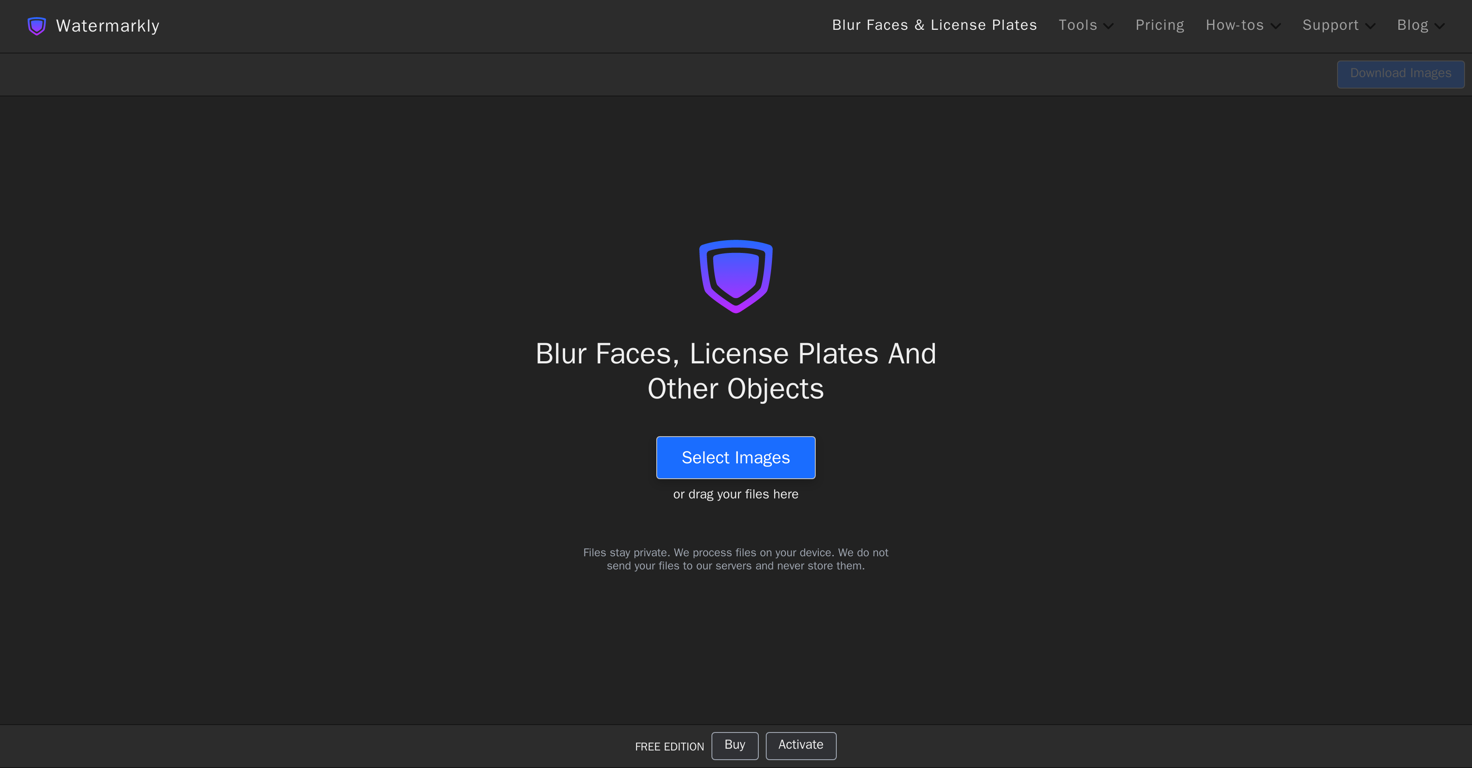
 Photo Anonymizer
 EraseID
Overview
Watermarkly is an AI-powered tool designed to blur faces, license plates and other sensitive objects in images for the purpose of privacy protection. You can import multiple images at once and the application will automatically detect and blur faces and license plates.
The tool is versatile, allowing you to manually adjust the level of blur, and choose which objects or faces to blur or leave unblurred. This feature enables you to manage your privacy while still keeping your images presentable.
In addition, the tool allows changing the shape of the blurred area between oval and rectangular and adjusting the size, position, and shape of the blurred area to fit specific needs.
Furthermore, the tool smooths the borders of blurred areas for a neat and seamless look. Watermarkly also has customizable export settings, letting you choose the size and format for the blurred images.
Its user-friendly interface allows even those without experience with face-blurring tools to achieve their desired result in a few clicks.
Releases

Pricing
Related topics
 0
0






How would you rate Watermarkly?
Help other people by letting them know if this AI was useful.