 Rocket - Start building, Now!

 Mini tools
github / CopilotForXcode
AI coding assistant for Xcode
README
<img align="center" height="70" src="./Docs/Images/AppIcon.png"/> GitHub Copilot for Xcode
GitHub Copilot for Xcode is the leading AI coding assistant for Swift, Objective-C and iOS/macOS development. It delivers intelligent Completions, Chat, and Code Review—plus advanced features like Agent Mode, Next Edit Suggestions, MCP Registry, and Copilot Vision to make Xcode development faster and smarter.
Chat
GitHub Copilot Chat provides suggestions to your specific coding tasks via chat.

Agent Mode
GitHub Copilot Agent Mode provides AI-powered assistance that can understand and modify your codebase directly. With Agent Mode, you can:
- Get intelligent code edits applied directly to your files
- Run terminal commands and view their output without leaving the interface
- Search through your codebase to find relevant files and code snippets
- Create new files and directories as needed for your project
- Get assistance with enhanced context awareness across multiple files and folders
- Run Model Context Protocol (MCP) tools you configured to extend the capabilities
Agent Mode integrates with Xcode's environment, creating a seamless development experience where Copilot can help implement features, fix bugs, and refactor code with comprehensive understanding of your project.
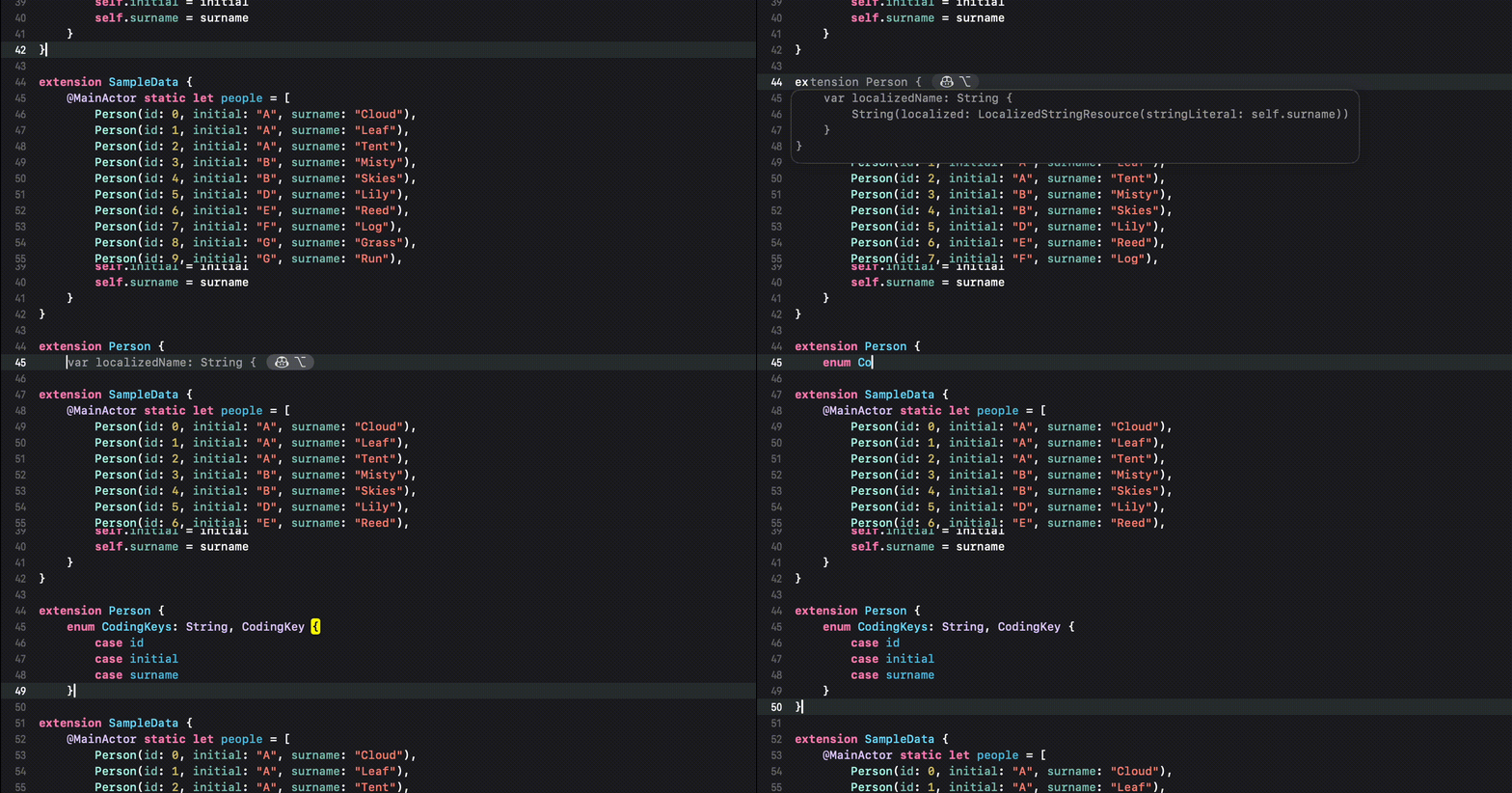
Code Completion
You can receive auto-complete type suggestions from GitHub Copilot either by starting to write the code you want to use, or by writing a natural language comment describing what you want the code to do.
Requirements
- macOS 12+
- Xcode 8+
- A GitHub account
Getting Started
-
Install via Homebrew:
brew install --cask github-copilot-for-xcodeOr download the
dmgfrom
the latest release.
DragGitHub Copilot for Xcodeinto theApplicationsfolder:<p align="center">
<img alt="Screenshot of opened dmg" src="./Docs/Images/dmg-open.png" width="512" />
</p>Updates can be downloaded and installed by the app.
-
Open the
GitHub Copilot for Xcodeapplication (from theApplicationsfolder). Accept the security warning.
<p align="center">
<img alt="Screenshot of MacOS download permission request" src="./Docs/Images/macos-download-open-confirm.png" width="350" />
</p> -
A background item will be added to enable the GitHub Copilot for Xcode extension app to connect to the host app. This permission is usually automatically added when first launching the app.
<p align="center">
<img alt="Screenshot of background item" src="./Docs/Images/background-item.png" width="370" />
</p> -
Three permissions are required for GitHub Copilot for Xcode to function properly:
Background,Accessibility, andXcode Source Editor Extension. For more details on why these permissions are required see TROUBLESHOOTING.md.The first time the application is run the
Accessibilitypermission should be requested:<p align="center">
<img alt="Screenshot of accessibility permission request" src="./Docs/Images/accessibility-permission-request.png" width="529" />
</p>The
Xcode Source Editor Extensionpermission needs to be enabled manually. Click
Extension Permissionfrom theGitHub Copilot for Xcodeapplication settings to open the
System Preferences to theExtensionspanel. SelectXcode Source Editor
and enableGitHub Copilot:<p align="center">
<img alt="Screenshot of extension permission" src="./Docs/Images/extension-permission.png" width="582" />
</p> -
After granting the extension permission, open Xcode. Verify that the
Github Copilotmenu is available and enabled under the XcodeEditor
menu.
<br>
<p align="center">
<img alt="Screenshot of Xcode Editor GitHub Copilot menu item" src="./Docs/Images/xcode-menu.png" width="648" />
</p>Keyboard shortcuts can be set for all menu items in the
Key Bindings
section of Xcode preferences. -
To sign into GitHub Copilot, click the
Sign inbutton in the settings application. This will open a browser window and copy a code to the clipboard. Paste the code into the GitHub login page and authorize the application.
<p align="center">
<img alt="Screenshot of sign-in popup" src="./Docs/Images/device-code.png" width="372" />
</p> -
To install updates, click
Check for Updatesfrom the menu item or in the
settings application.After installing a new version, Xcode must be restarted to use the new
version correctly.New versions can also be installed from
dmgfiles downloaded from the
releases page. When installing a new version viadmg, the application must
be run manually the first time to accept the downloaded from the internet
warning. -
To avoid confusion, we recommend disabling
Predictive code completionunder
Xcode>Preferences>Text Editing>Editing. -
Press
tabto accept the first line of a suggestion, holdoptionto view
the full suggestion, and pressoption+tabto accept the full suggestion.
How to use Chat
Open Copilot Chat in GitHub Copilot.
-
Open via the Xcode menu
Xcode -> Editor -> GitHub Copilot -> Open Chat.
<p align="center">
<img alt="Screenshot of Xcode Editor GitHub Copilot menu item" src="./Docs/Images/xcode-menu_dark.png" width="648" />
</p> -
Open via GitHub Copilot app menu
Open Chat.
<p align="center">
<img alt="Screenshot of GitHub Copilot menu item" src="./Docs/Images/copilot-menu_dark.png" width="244" />
</p>
How to use Code Completion
Press tab to accept the first line of a suggestion, hold option to view
the full suggestion, and press option + tab to accept the full suggestion.
License
This project is licensed under the terms of the MIT open source license. Please
refer to LICENSE.txt for the full terms.
Privacy
We follow responsible practices in accordance with our
Privacy Statement.
To get the latest security fixes, please use the latest version of the GitHub
Copilot for Xcode.
Support
We’d love to get your help in making GitHub Copilot better! If you have
feedback or encounter any problems, please reach out on our Feedback
forum.
Acknowledgements
Thank you to @intitni for creating the original project that this is based on.
Attributions can be found under About when running the app or in
Credits.rtf.





